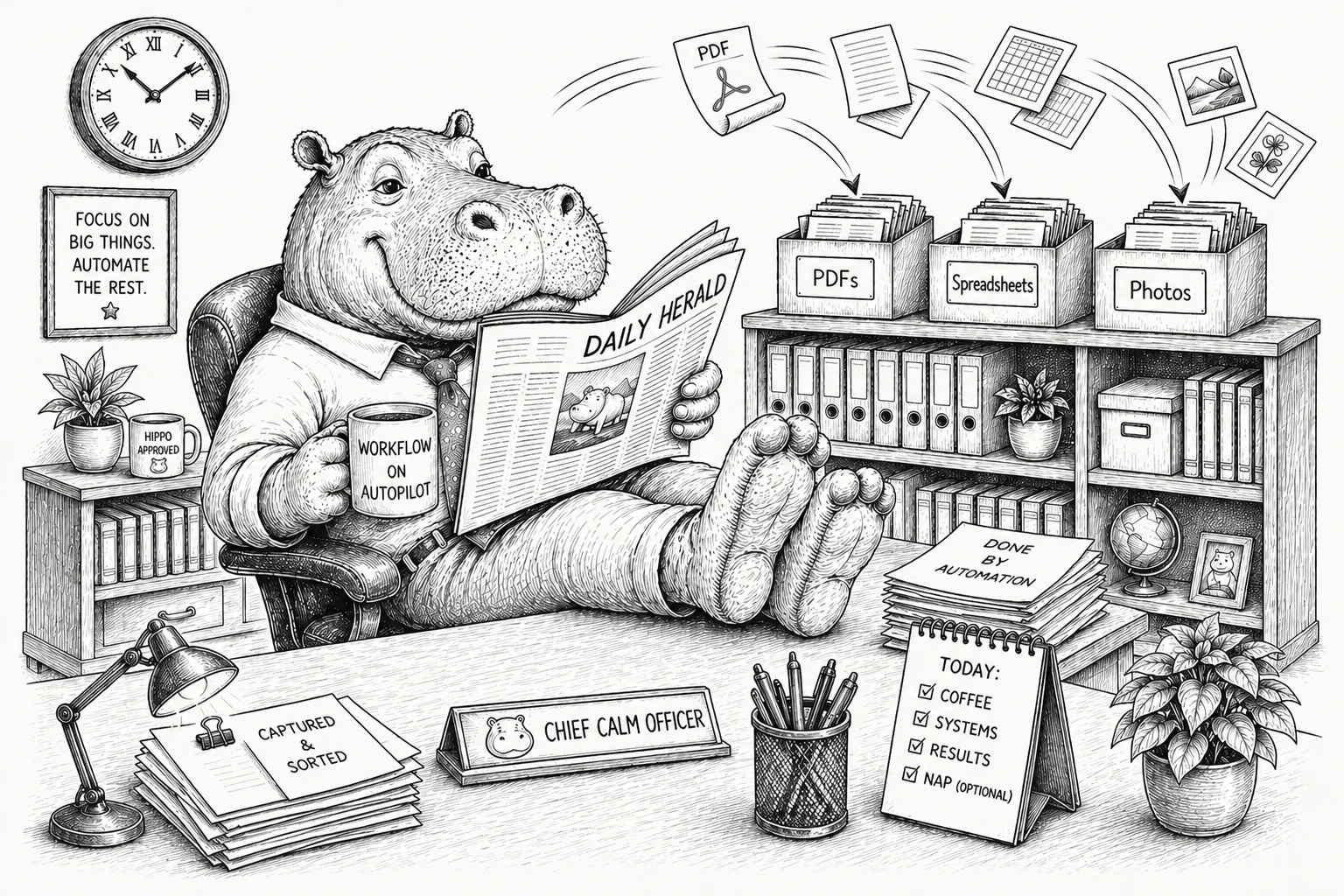
This is a real workflow that many of our users describe. Here it is in their words.
I've been using Gmail for work for over fifteen years. In that time I've received tens of thousands of emails – and a significant chunk of them had files I needed to keep. Invoices. Contracts. Spreadsheets. Photos from job sites. The kind of files you can't afford to lose and can't leave buried in your inbox.
So I saved them. Every one, by hand. Open the email, click the attachment, download it, drag it to the right folder in Google Drive. Sometimes I'd rename it so I'd actually find it later. Close the tab. Move on to the next email. Repeat this process – conservatively – eight to twelve times a day.
I never questioned it. It was just part of the job.
Then one afternoon I actually sat down and counted how much time I was spending downloading Gmail attachments manually.
That last number hit hardest. I wasn't just losing time saving files – I was losing time finding them again.
Manual saving is inconsistent. Some days I'd rename carefully. Other days I'd be in a rush and dump
everything into the wrong folder under a useless name like scan0047.pdf.
The real cost of saving attachments manually
When you save Gmail attachments to Google Drive by hand, you're making the same set of small decisions over and over: which folder does this go in, what should I name it, is this the right version? It feels like a few minutes of work. Multiplied across a full working week, it's a part-time job.
And because it's repetitive, it degrades. You start cutting corners. Files land in the wrong place. Names get lazier. Then one day a client asks for the contract from February and you're opening eight different files called contract.pdf trying to find it.
"I wasn't organized. I was performing organization – doing the same tedious steps on repeat and calling it a system."
How I automated it in two minutes
After some searching I came across Attachment Hippo – a Gmail add-on available on the Google Workspace Marketplace that automatically saves email attachments to Google Drive based on rules you define. I was skeptical. I had tried tools like Zapier and n8n before and they always felt brittle or overcomplicated for this specific task.
This was different. I installed it and set up two rules. The whole thing took under two minutes – not because I'm particularly technical, but because I already knew exactly how I wanted my files organized. The tool just did what I told it.
It creates a dedicated Attachment Hippo folder in your Google Drive and saves everything inside it. I set mine up to match exactly how I'd always wanted things arranged.
My two rules
- Rule 1 – PDFs: Every PDF attachment – invoices, contracts, statements – automatically saves to
Attachment Hippo › PDFs, sorted by month. - Rule 2 – Spreadsheets: Any Excel file goes straight to
Attachment Hippo › Spreadsheets, where my team can access them without me forwarding anything.
That's it. Now when a matching file arrives, it's already waiting in my Attachment Hippo folder – in the right subfolder, with a clean consistent name – before I've even opened the email. My manual download habit is gone because there's nothing left to download.
And that scan0047.pdf problem? Gone too. Every file arrives named exactly the way I would have named it myself, if I'd had the time and patience to do it right every single time.
Setting it up takes less time than making a coffee
- Install Attachment Hippo from the Google Workspace Marketplace – it connects directly to your Gmail in one click.
- Create a rule: choose which Gmail attachment types to watch for (PDFs, Excel files, JPEGs) and which subfolder inside your Attachment Hippo folder they should land in. You can create as many subfolders as you need.
- Done. The rule runs silently from that point on – no app to open, nothing to remember.
What three hours a week actually feels like
Getting time back sounds abstract until you notice it in the small moments. For me it showed up as no more "let me just find that attachment" pauses mid-call, a Google Drive that's always current without effort, and a quieter mind at the end of the day.
The deeper shift was cognitive. When you know everything is handled automatically – in the right folder, every time – you stop carrying that low-grade anxiety of "I should really sort those out later." It just disappears.
"The best system is one you never have to think about."
Who gets the most out of this
If you already have a folder structure in Google Drive – if you've ever created a naming convention, if you notice when files are in the wrong place – then Attachment Hippo isn't replacing your system. It's the engine that runs it automatically, exactly the way you designed it, without you having to touch it.
You already did the hard part: figuring out how you want things organized. This just removes the daily labor of actually doing the organizing – filing every attachment, one by one, forever.
Start with one rule
Pick the file type that piles up most in your inbox. For most people it's PDFs – invoices, receipts, signed contracts. Create one rule that saves them directly where they belong. Let it run for a week.
If you're anything like me, you'll have two more rules set up before the week is out.
Attachment Hippo is free to install from the Google Workspace Marketplace. Your first rule – automatically saving Gmail attachments to Google Drive – takes under 2 minutes to create. Get started with Attachment Hippo →